monday.com AI Agents and Sidekick: What to Automate First (and What Not To)
monday Sidekick vs monday.com AI agents: what each does, how AI credits work, which use cases to pilot first, and where humans should stay in charge.

The monday.com MCP server lets AI assistants such as Claude, ChatGPT, Microsoft Copilot Studio or Cursor connect directly to your monday.com account. Instead of pasting board exports into a chat, the assistant can look up items, summarize updates, create items or change column values, always through the permissions of the person who connected it. According to monday.com, MCP is included on all plans at no extra cost. Setup takes minutes. The work that matters is deciding which boards are ready for AI, what the assistant may change, and who owns those rules.
This guide covers what MCP is, how to connect the main assistants, and the governance choices we recommend before a whole team starts using it. If you want help deciding where AI fits your setup, that is part of our monday.com consultancy.
MCP stands for Model Context Protocol, an open standard for connecting AI assistants to tools and data. Think of it as a universal adapter. A tool publishes an MCP server that describes what can be done (“find items”, “update a column”, “post an update”), and any assistant that speaks MCP can use it.
monday.com’s MCP server exposes your workspace in that format. Its published list of tools covers:
If you already build on the API, MCP does not replace it. The monday.com API is for software you write; MCP is for AI assistants your people use.
monday.com lists support for ChatGPT, Claude, Cursor, Copilot Studio, Mistral’s Le Chat, Figma Make and Gemini CLI. The two most requested by our clients’ teams:
On the monday.com side, an account admin controls whether AI connectors and MCP access are allowed. Check that setting before you announce anything to the team.
This is the part that reassures security teams: the MCP connection acts as the signed-in user. It respects board permissions, item-level permissions and private boards. An assistant working for a project manager sees what that project manager sees in monday.com, nothing more.
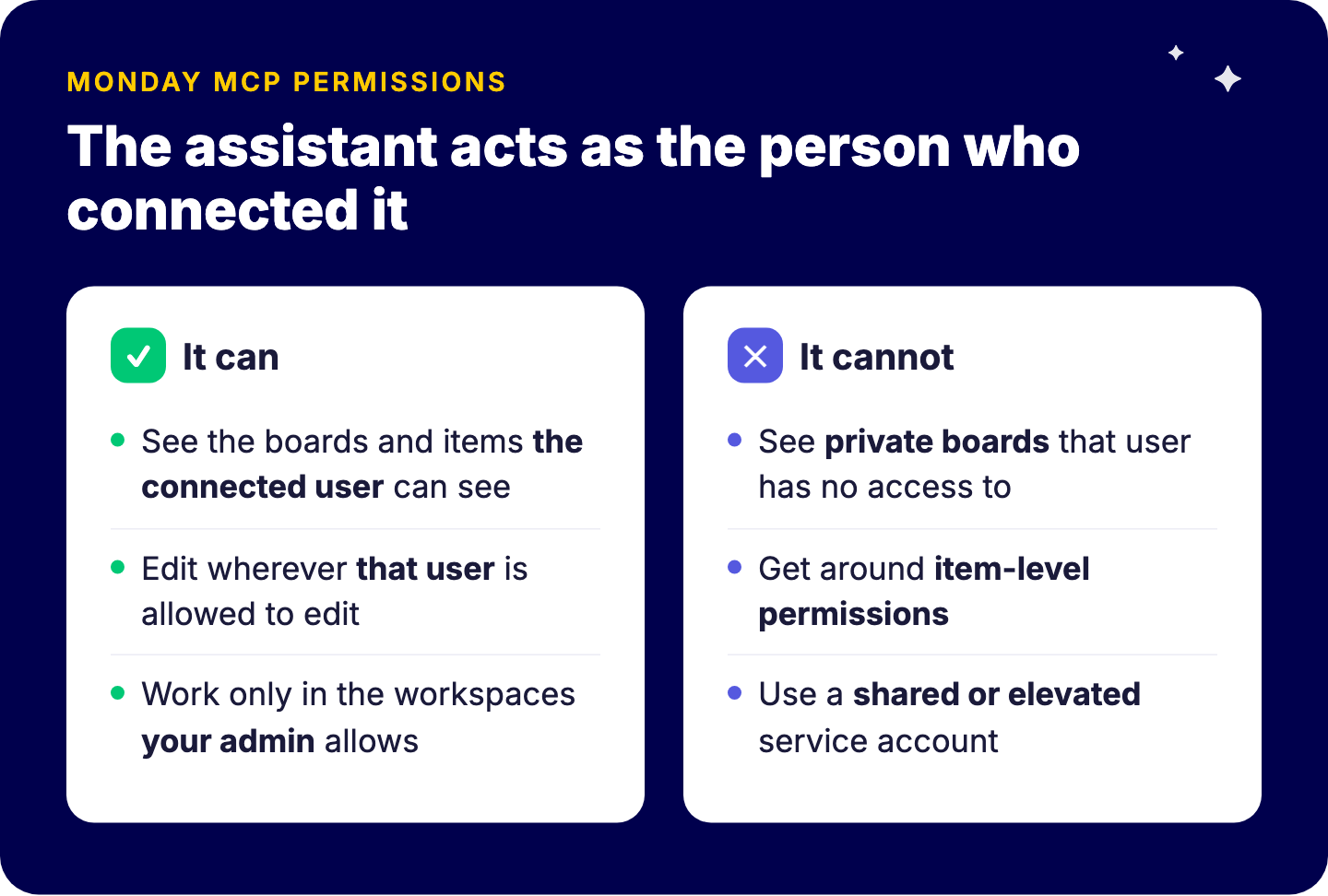
That also means the reverse: if a user can edit a board, an assistant acting for them can edit it too. Permissions you configured loosely for humans become loose for AI. That is the strongest argument for tidying permissions before a broad rollout, not after.
An AI assistant reads your boards the way a new hire does on day one, only faster and more literally. If a status column is called “Status 2”, if half the items live in a group named “Old”, and if the real deadline sits in a text column, the answers will be confidently wrong.
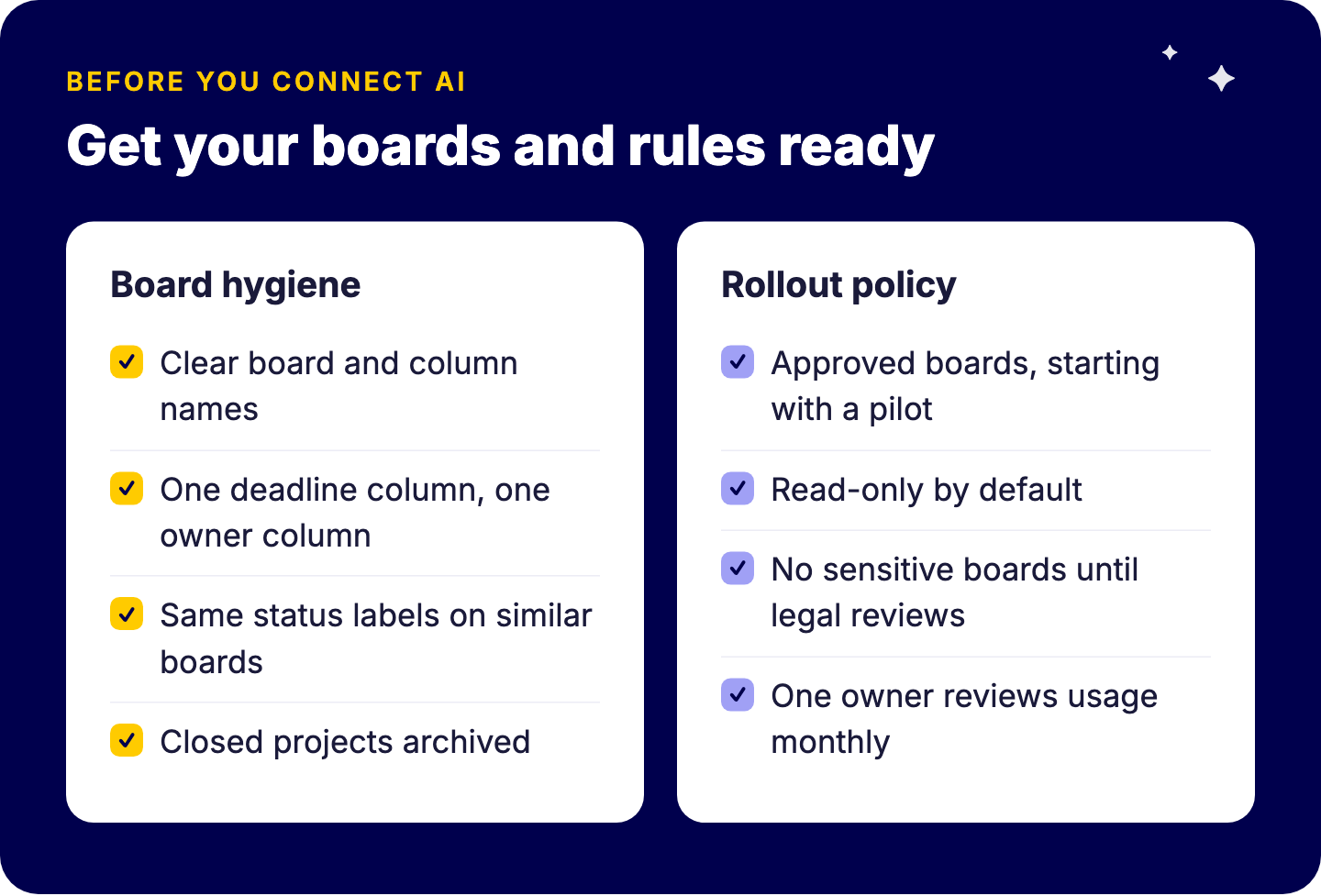
Before connecting AI, check the basics:
This is the same discipline that makes dashboards and portfolio views reliable. monday.com is a platform, and the configuration is the value. With AI on top, that configuration becomes the context the model reasons over.
Start with questions where a wrong answer is cheap and a right answer saves real time:
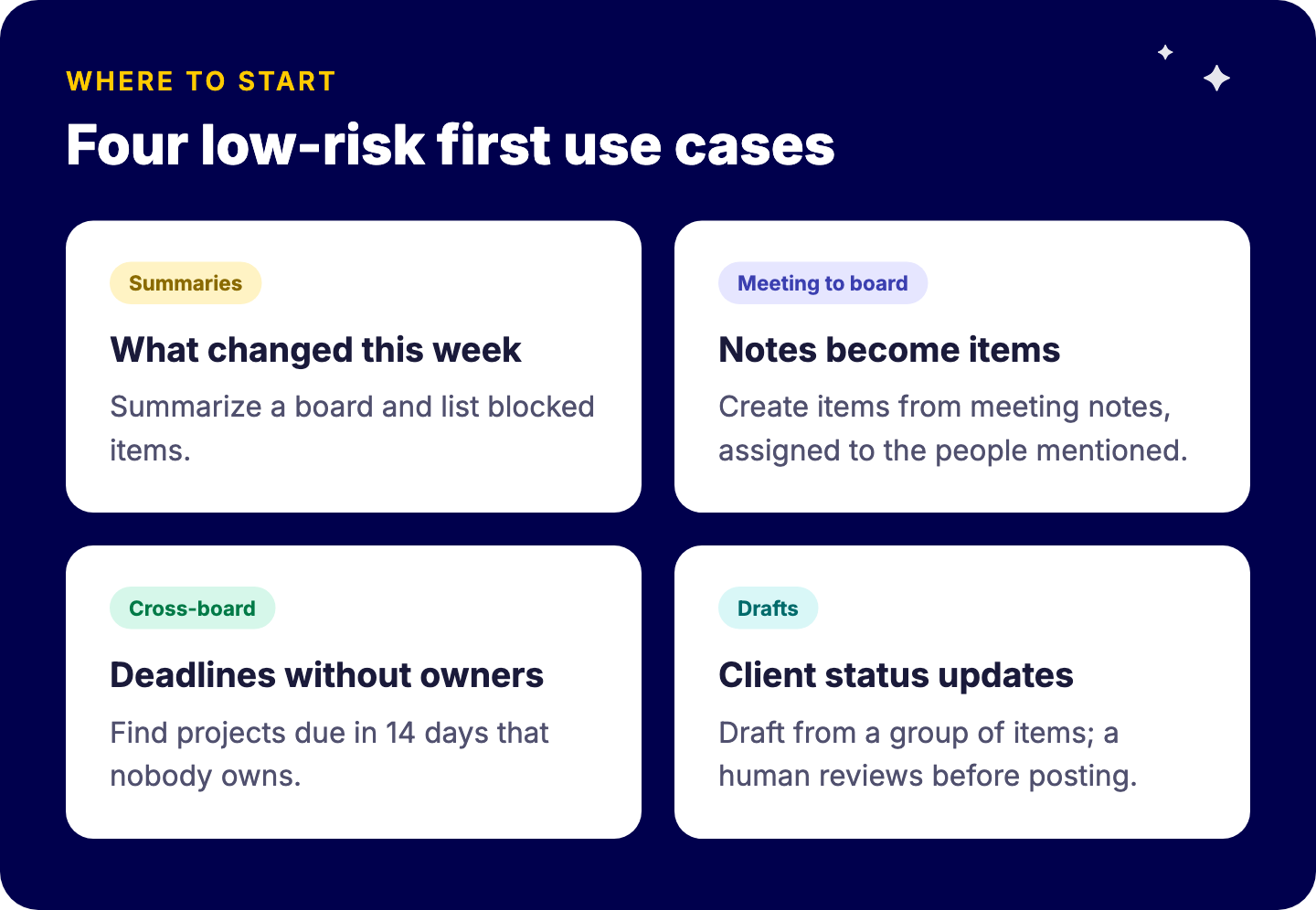
Hold back on bulk write actions (mass status changes, deleting items, restructuring boards) until you have tested them on a copy of the board.
A short, written policy prevents most problems. Ours usually covers:
For a broader view of where AI helps project work, see our wiki on AI in project management and our overview of monday magic and monday vibe.
monday.com’s native AI (Sidekick, agents, AI blocks, Vibe) runs inside monday.com and uses monday.com’s AI credit system. MCP brings an external assistant to your data, which is useful when your team already works in Claude, ChatGPT or Copilot all day. monday.com states MCP itself does not consume AI credits.
Many organizations will use both: native AI for automations that live on boards, MCP for ad-hoc questions and drafting from the assistant people already use. The integration principles are the same as for any connection, see how to integrate monday.com with other platforms.
monday.com’s implementation of the Model Context Protocol, which lets AI assistants read and act on your monday.com data.
monday.com says it is included on all plans at no extra cost and does not use AI credits. Your AI assistant may need its own plan.
No. It works through the connected user’s permissions.
Start read-only, pilot on a few boards, then allow write actions with clear ownership.
AI assistants are only as good as the boards they read. If you want a quick review of which boards are AI-ready and a governance policy that fits your organization, talk to one of our senior consultants. Book a free intro call with Tryve.