Time Tracking in monday.com: Setup, Reporting and When You Need an App
Time tracking in monday.com: the Time Tracking column, manual entries, reports and billable hours, plus when a dedicated time app is the better choice.

Time tracking in monday.com is built on the Time Tracking column, available on the Pro and Enterprise plans of monday work management at the time of writing. Each item gets a start and stop timer, and people can also add or edit entries manually. You can report on hours in dashboards and export time data to Excel for billing or analysis. For internal effort tracking and estimate accuracy, the native column is usually enough. When you need hourly rates, approval workflows, timesheets across many projects or direct invoicing, a dedicated time tracking app or an integration with your invoicing tool is the better choice.
Time tracking comes up in many project and agency implementations we run as part of our monday.com implementation service, and the first question should always be the same: what is the time data for?
The purpose decides the setup. There are three common reasons:
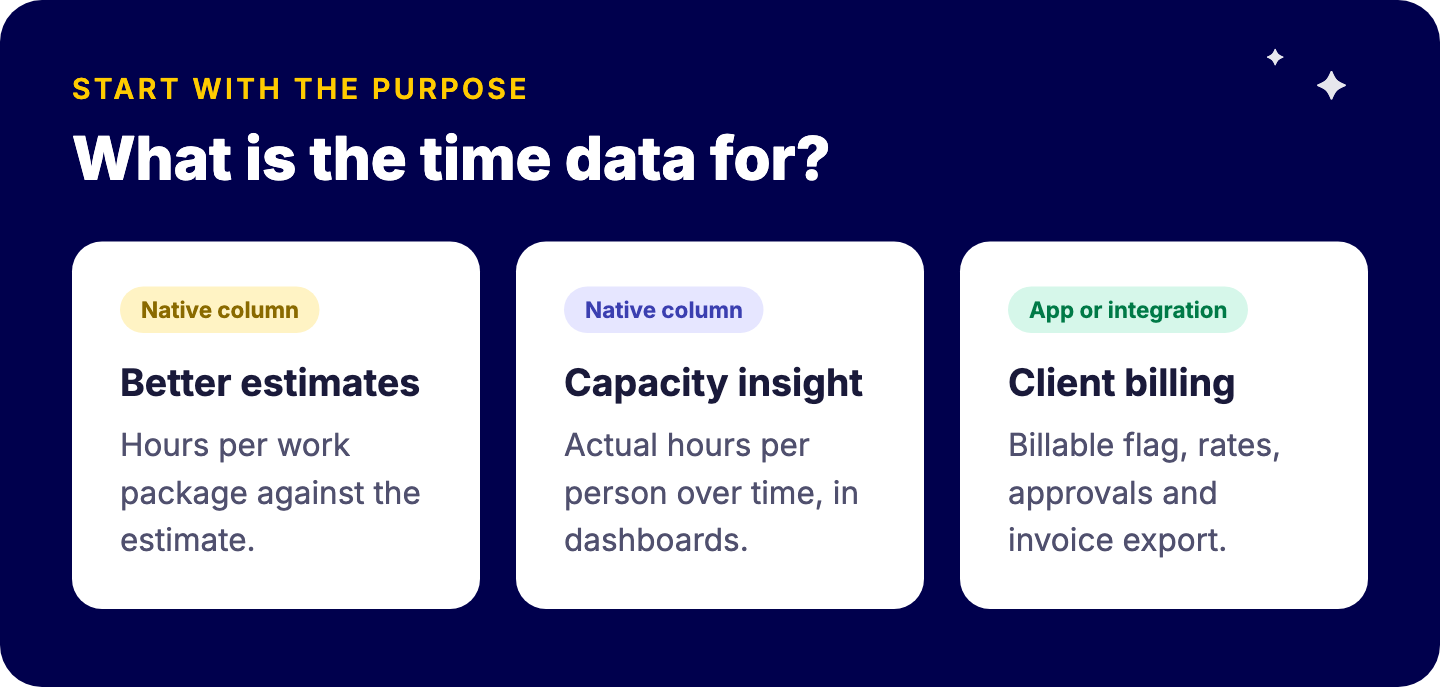
| Purpose | What you need | Native column enough? |
|---|---|---|
| Better estimates | Hours per work package compared with estimates | Usually yes |
| Capacity insight | Actual hours per person over time | Usually yes, with dashboards |
| Client billing | Billable flag, rates, approvals, invoice export | Often an app or integration |
If you do not know which one applies, you will get lots of data and few decisions. For the general concept, see our wiki on time tracking.
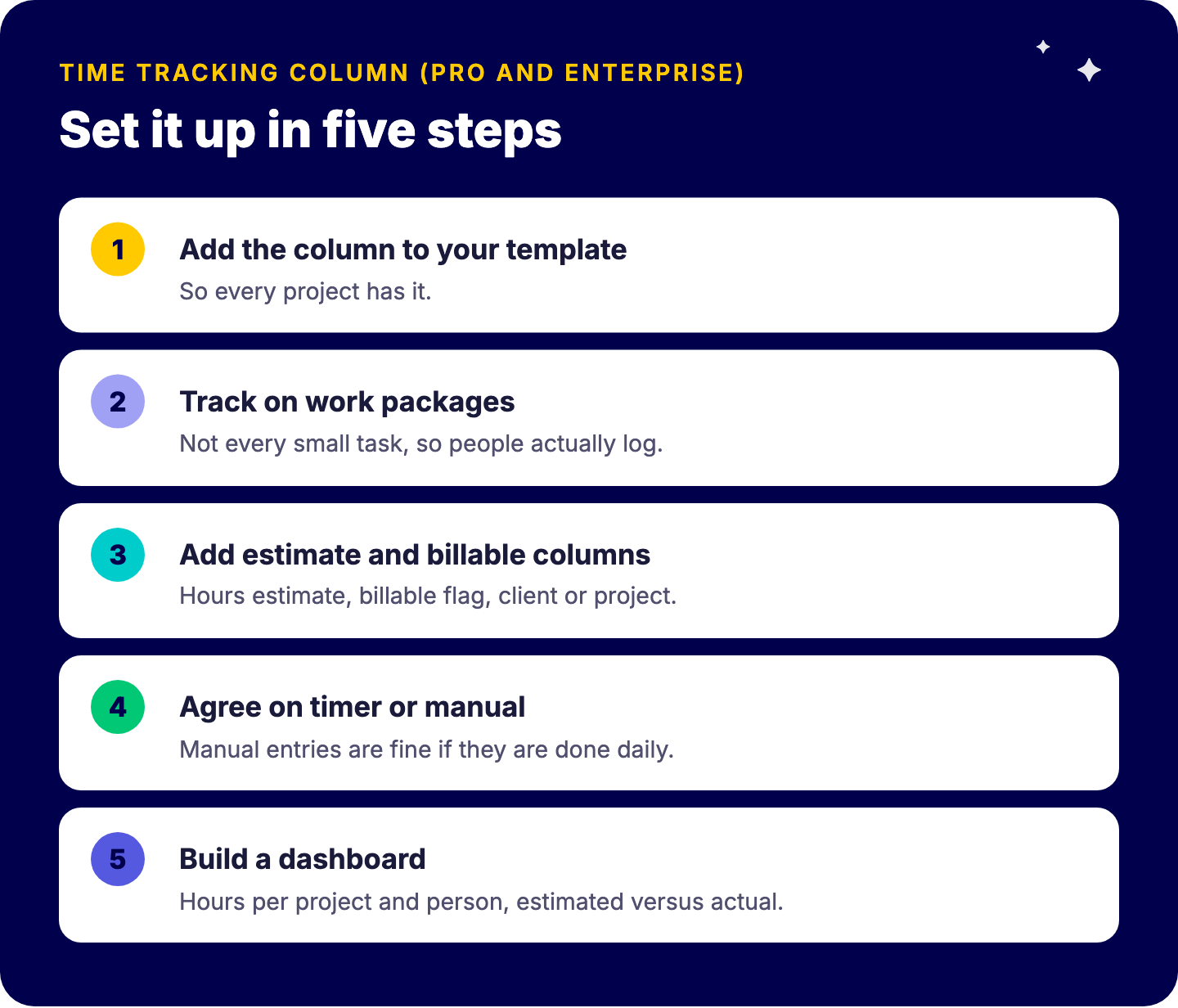
Make it explicit. A “billable” status on the item, or separate items for non-billable internal work, lets dashboards show the billable share per person and per client. For agencies and consultancies, that ratio is one of the most useful management numbers. Our article on monday.com for agencies covers the broader setup.
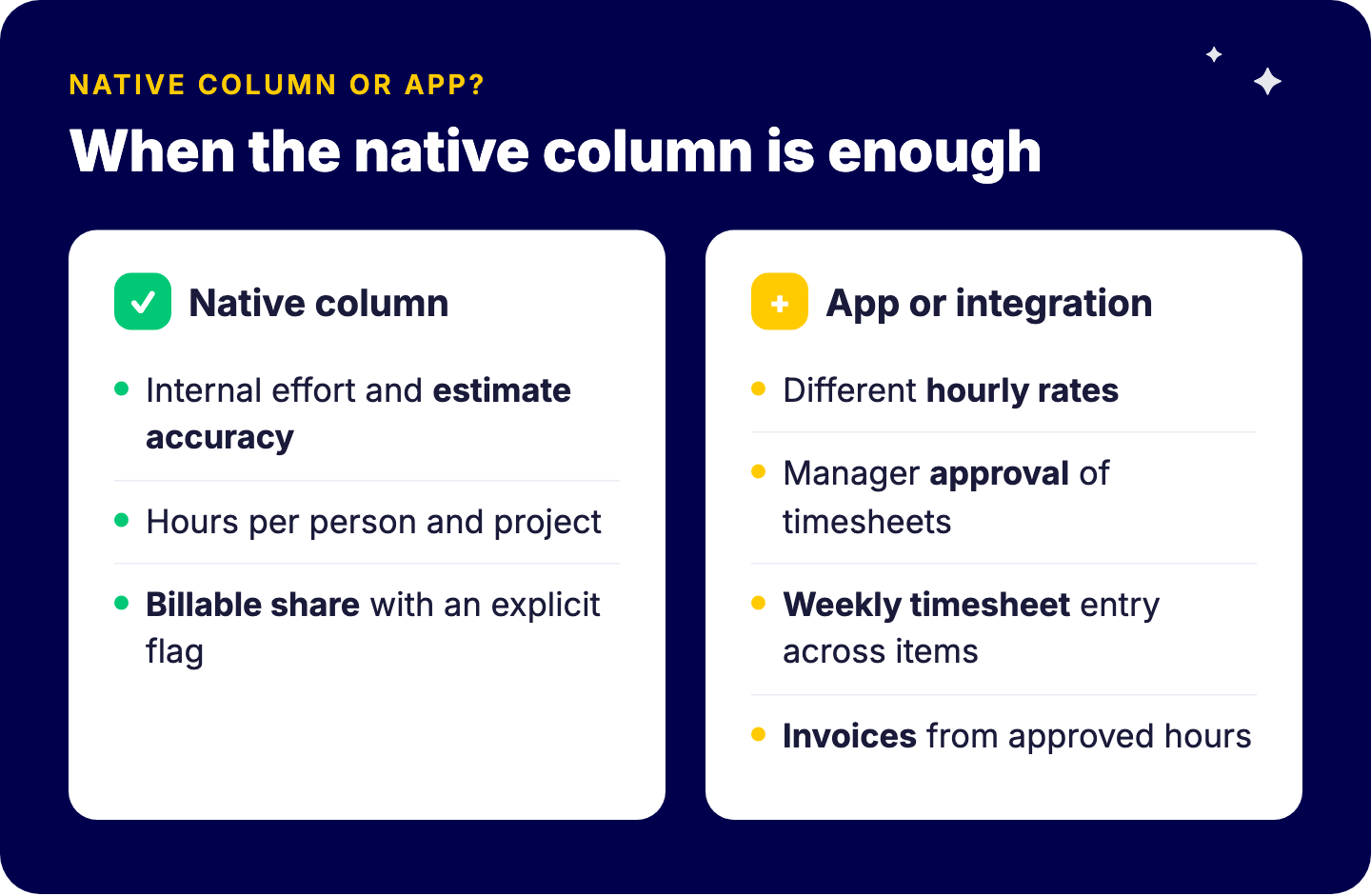
Where the native setup gets stretched:
Those needs are the typical trigger for a marketplace time tracking app or an integration with your invoicing system.
Use dashboards, not board scrolling. Useful widgets:
Our guide to monday.com dashboards that get used explains how to keep these readable. For billing or deeper analysis, export time data to Excel, for example per entry with item, user and hours.
Planned effort is a forecast; tracked time is the actual. Comparing the two each month shows where estimates are systematically optimistic, which people carry hidden work, and how much non-project time eats capacity. Feed those learnings back into your capacity planning in monday.com and plans get realistic quickly.
Results come from using the data, not collecting it. Measured outcomes also make the case for your setup internally: the 433 case, for example, reports 2,465 hours saved per year on monday.com.
At the time of writing, Pro and Enterprise.
Yes, alongside the timer, entries can be added and edited.
With an explicit billable field and dashboards; rates and approvals often need an app or integration.
Yes, to Excel, for reporting or billing.
We design time tracking around the decisions you need to make, from better estimates to cleaner billing. Book a free intro call with Tryve.