Tryve implements CRM and project management solutions for businesses

+32 3 377 78 31  Antwerp - Arnhem - Paris

Capacity Planning in monday.com: How to See Who Is Overloaded Before the Deadline

Capacity Planning in monday.com: How to See Who Is Overloaded Before the Deadline

Capacity Planning in monday.com: How to See Who Is Overloaded Before the Deadline

Table of Contents

To see who is overloaded before a deadline slips, you need three pieces of data on every board: who is assigned (a people column), when the work happens (a date or timeline column) and how much work it is (an effort value, usually hours). monday.com’s Workload view then compares assigned effort per person per period with their capacity, and flags anyone over it. Put the Workload widget on a dashboard and you get the same picture across all project boards. The tool is simple. Getting reliable data into it is the real work, and that is mostly about consistent board structure and a weekly planning habit.

Capacity planning is a core part of monday.com implementation work for project organizations, because it is where spreadsheets break first.

What does capacity planning in monday.com actually show?

It shows planned demand against available supply, per person and per time period. Workload is available on the Pro and Enterprise plans. In practice it answers questions like:

  • Who has room for the new client project starting in three weeks?
  • Which specialists are booked on four projects at once?
  • Is next month’s peak real, or a planning artifact from dates nobody updated?

It is the practical side of resource management: not a theory of allocation, but a weekly view you act on.

Which columns do you need on your boards?

ColumnPurposeTip
PeopleWho does the workOne owner per item where possible
Timeline or dateWhen the work happensTimeline for multi-day work, date for one-off tasks
EffortHow much workHours in a number or time estimation column; be consistent across boards

Two consistency rules make or break cross-board views:
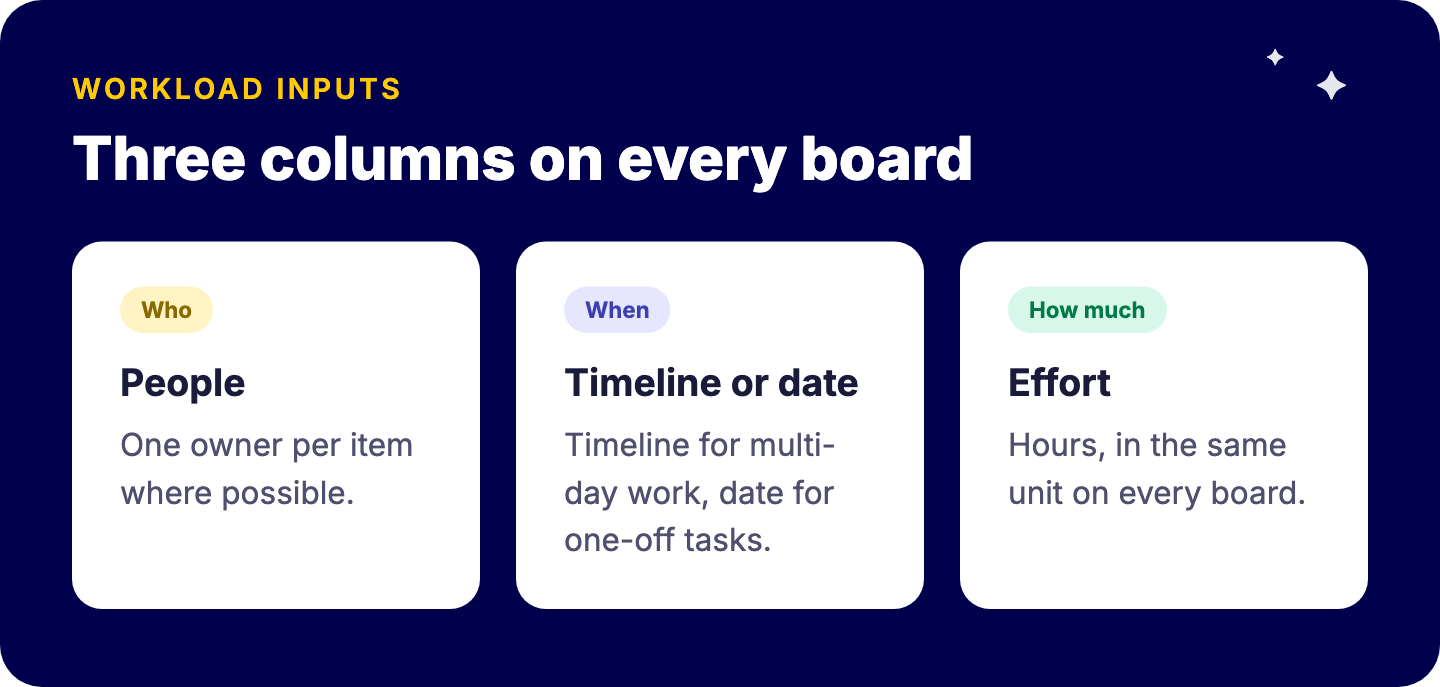
Three columns monday.com Workload needs on every board: a people column for who does the work, a date or timeline column for when, and an effort column in hours for how much
  1. Same unit everywhere. Hours on one board and story points on another cannot be added up.
  2. Same column type everywhere. A dashboard widget needs to read the same kind of column on each board. Use a board template so every new project starts right.

How do you set up the Workload view step by step?

  1. Open a project board and add a Workload view.
  2. Choose the people column that defines assignment.
  3. Choose the date or timeline column that places work in time.
  4. Choose the effort column, for example estimated hours.
  5. Set capacity per person, either from a standard schedule or a custom number.
  6. Decide how shared items count: split effort between assignees or count the full effort for each.
  7. Pick the time scale, usually weeks for project teams.

Then move work directly in the view: drag items between people or dates to rebalance.
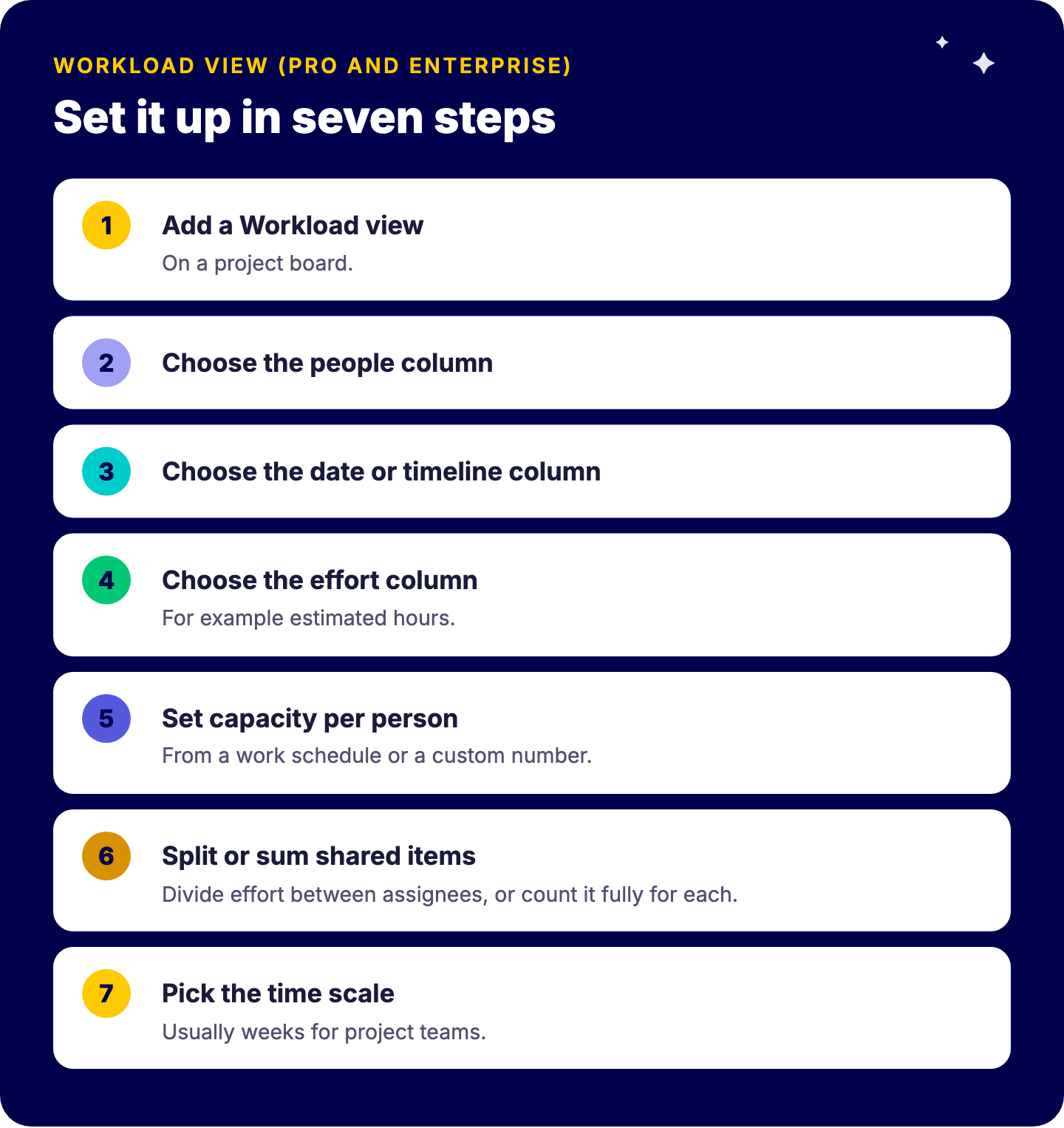
Seven steps to set up the monday.com Workload view: add the view, choose the people column, choose the date or timeline column, choose the effort column, set capacity per person, choose split or sum for shared items, pick the time scale

How much capacity should you give each person?

Less than their contract hours. A consultant on 38 hours a week does not have 38 plannable project hours. Meetings, internal work, support requests and context switching take a real share.
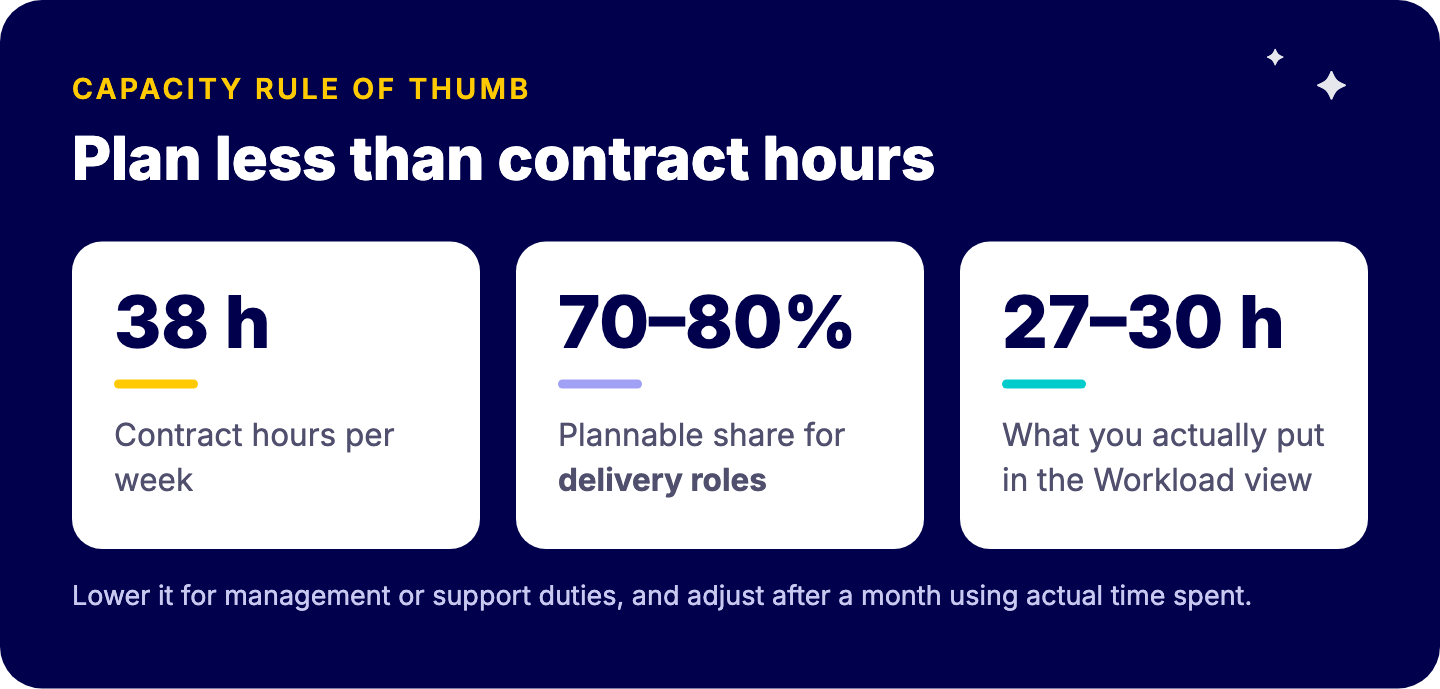
Capacity rule of thumb: a 38-hour contract gives roughly 27 to 30 plannable project hours at 70 to 80 percent; lower for people with management or support duties; adjust after a month

A practical approach:

  • Start with plannable hours at roughly 70 to 80 percent of contract hours for delivery roles.
  • Lower it for people with management or support duties.
  • Adjust after a month by comparing planned effort with actual time spent. Our guide to time tracking in monday.com explains how to capture that.

How do you see capacity across all projects?

A single board’s Workload view only shows that board. For a real picture, add a Workload widget to a dashboard connected to all active project boards. This is where portfolio structure pays off.

The Vlerick setup is a good illustration: projects are organized into portfolios, each project uses a consistent template, resource capacities are adjustable per board, and weekly planning is linked to annual budgets by domain. For more on portfolio views, read managing projects at scale with the monday.com portfolio solution and our guide to dashboards that get used.

What planning habits keep the data reliable?

A capacity view is only as good as its inputs. The habits that matter most:

  • Weekly 20-minute capacity review with project leads: look at the next four weeks, rebalance red cells.
  • Update dates when plans change. Stale timelines create phantom peaks.
  • Estimate at the right level. Estimate phases or work packages, not every tiny task.
  • Re-estimate at milestones. Early estimates are guesses; update them as scope becomes clear.
  • Include non-project work that takes real capacity, such as recurring support, as items with effort.

If you run many parallel projects, our guide on how to manage multiple projects at once covers the prioritization side, and a Gantt chart view helps visualize dependencies that drive the peaks.

What are the common mistakes?

  • Planning without effort values, so everyone looks equally busy.
  • Mixing units across boards.
  • Setting capacity at 100 percent of contract hours.
  • Using capacity views only for crises instead of weekly planning.
  • Building a separate resource spreadsheet next to monday.com, which means two truths.

Frequently asked questions

Does monday.com have capacity planning?

Yes, through the Workload view and Workload widget, on the Pro and Enterprise plans.

How do I set capacity per person in monday.com?

In the Workload settings, from a schedule or a custom value, with an effort column as input.

Can I see capacity across multiple boards?

Yes, with a dashboard Workload widget over boards with consistent columns.

What is the difference between capacity planning and time tracking?

Capacity planning looks forward at planned effort; time tracking looks back at actual hours.

Want capacity planning your managers trust?

We design board templates, effort conventions and capacity dashboards that give you a reliable forward view across all projects. Book a free intro call with Tryve.


Sources

Want to increase your productivity?

Tryve is a monday.com platinum partner and helps companies with implementing state-of-the-art project management tools!

Related articles

  • What we do
  • Pricing
  • About
  • Cases
  • Blog
  • Careers