Track every piece of content through seven stages, not just a publish date.
Approval is where calendars break: name one approver per content type and give them a ‘changes requested’ status.
In monday.com, one board plus a request form, a calendar view and three automations covers the whole flow.
gro-up and 433 both moved their content work into monday.com and published measurable time savings.
A solo marketer does not need any of this; a spreadsheet is fine.
An editorial calendar template should carry each piece of content through seven stages: idea, brief, draft, review, approval, publish and repurpose. The publish date is one column, not the whole template. Most calendars break at approval, so the template needs a named approver per content type, a “changes requested” status and a review due date. In monday.com that becomes one board with a request form, a calendar view and a few automations. For a solo marketer, a spreadsheet is still fine.
We build these flows for marketing teams as part of our monday.com implementation work, and the pattern below is the one that holds up once more than a few people are involved.
What should an editorial calendar template include beyond dates?
A date tells you when something should go live. It does not tell you whether the draft exists, who is reviewing it, or whether legal has seen it. Give every piece of content one row (or one item) and move it through these stages:
Is a content calendar template different? For most teams the terms mean the same thing. When people make a distinction, the content calendar shows what goes live when, and the editorial calendar also carries the workflow behind it. You want the second one.
Why do editorial calendars break at the approval step?
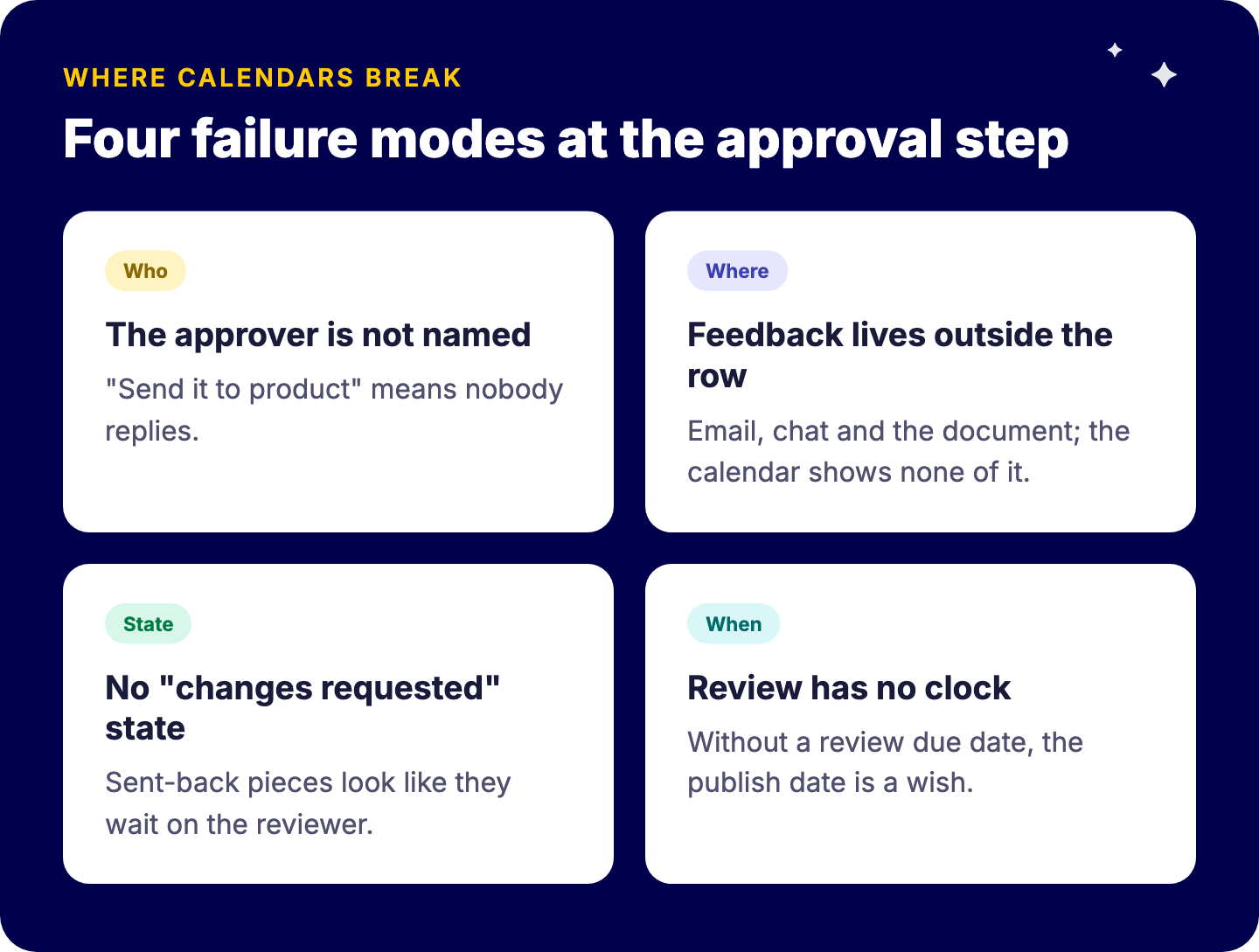
Ideas are easy and publishing is mechanical. Approval is the step that depends on someone outside the content team finding time. In spreadsheet calendars we see the same four failure modes:
The approver is not named. “Send it to product” means nobody feels responsible, so nobody replies.
Feedback lives outside the row. Comments arrive by email, chat and in the document, and the calendar shows none of it.
There is no “changes requested” state. A piece is either “in review” or “approved”, so pieces that were sent back look like they are waiting on the reviewer.
Review has no clock. Without a review due date, the publish date is a wish.
The fix is structural, not a reminder to try harder. One approver per content type, a status the approver sets themselves, and a notification when it is their turn. If you want the full design (thresholds, the four-eyes principle, escalation, audit trail), see our guide to designing an approval workflow people do not route around.
How do you build an editorial calendar template in monday.com?
Start with the intake form
Most content teams do not only plan their own work. They also receive requests from sales, HR or leadership. Route all of them through one WorkForm that creates an item on the board. WorkForms support conditional logic, so follow-up questions appear based on earlier answers: pick “case study” and the form asks for the client contact; pick “event” and it asks for the date. We cover the triage side in a single intake process.
One board, one item per piece
Build one board with the fields above. Use groups for months or campaigns, and keep the Stage column as the one status everyone reads. If a piece has several derived assets, use subitems for the repurposing work rather than separate rows that drift apart.
On Pro and Enterprise plans you can also set columns as required, so a request cannot be created without, for example, a content type and a publish date. Check your plan before relying on it.
Calendar view for the publish plan
Add a Calendar view on the Publish date column. It shows items by month, week or day, and you can color them by group, status or person. Coloring by Stage is the quickest way to spot a piece scheduled for Tuesday that is still in draft. For a deeper look at the options, see monday.com’s calendar and timeline views. Note the plan gate: monday.com’s support docs list the Calendar view on Standard, Pro and Enterprise, not on the free plan.
Three automations to start with
Workflow automation is where the calendar stops depending on memory. Start with three:
When Stage changes to Review, notify the Approver. This alone removes most chasing.
When Stage changes to Changes requested, notify the Owner.
When Stage changes to Published, notify the requester and create the repurposing subitems.
Resist automating every status change. Automations are available from the Standard plan up, and monday.com’s support docs list a monthly allowance of 250 automation actions on Standard, 25,000 on Pro and 250,000 on Enterprise. A busy content board can use a small allowance quickly. More ideas in our list of automations worth building.
Save it as a template
Once the board works for a quarter, save it as a reusable template so a new campaign or a new market starts with the same stages, fields and automations.
What does an automated content flow deliver in practice?
Two Tryve clients published results after moving their content work into monday.com. These are their figures, from their case pages, not a promise for every team.
gro-up’s marketing team (gro-up works in local maternity care, daycare, youth care and community work) received content requests by email from all over the organization, with no clear follow-up. Now every request comes in through a monday.com WorkForm with conditional questions, lands on the right department’s project board, and is assigned automatically to the correct project owner. Specialists get their tasks on their own team boards. The case page reports:
4,071 hours saved per year in total
53 hours saved per year per user
$97,859 saved on an annual basis (200% ROI)
The case page sums up the new rule: “If it’s not in monday, it doesn’t exist.”
433, the social sports community with over 115M followers, relied on emails, chats, calls and meetings for marketing briefings, and reporting was manual. With Tryve they built a single source of truth in monday.com, using advanced rights and roles so sales, project management, graphic design, video production and publishing work from the same data. They added semi-automated reporting to customers, with published content per channel and its results uploaded daily through an API. The case page reports a 115% increase in campaign capacity, 2,465 hours saved per year, and “10X in automating processes in 2 years time”.
When is a spreadsheet editorial calendar good enough?
Honestly, often. If you are a solo marketer, or two people who sit next to each other, a spreadsheet with a stage column and a publish date is enough. You are the approver, or you can lean over and ask.
You have outgrown it when:
Requests arrive from people outside the content team.
More than one person reviews or approves.
You regularly discover a piece is “approved” only after it was supposed to go live.
Repurposing is always planned and rarely done.
At that point the problem is no longer the template. It is that nothing enforces the process, and that is what a board, a form and three automations give you.
FAQ
What is the difference between an editorial calendar and a content calendar?
Most teams use the terms interchangeably. In practice, a content calendar often shows only what goes live when, while an editorial calendar also tracks the workflow behind each piece, from idea to approval to repurposing.
What columns should an editorial calendar template have?
At minimum: title, stage, owner, approver, content type, channel, brief link, review due date, publish date and a repurposing field.
Can monday.com show an editorial calendar in calendar view?
Yes. monday.com’s Calendar view shows board items by date in month, week or day layouts. Check the current plan gate: monday.com’s support docs list it on the Standard, Pro and Enterprise plans.
How do you handle approvals in an editorial calendar?
Name one approver per content type, give them a status to set (approved or changes requested), add a review due date, and notify them automatically when a piece is ready for review.
Want to see this editorial calendar running on your own content?
If your calendar keeps stalling at review, we can walk you through how this board, form and approval flow would look with your content types and your approvers. Book a free intro call with Tryve.
Talk to Tryve
Tryve is a monday.com Platinum Partner. Every engagement starts with a structured discovery session built around your actual processes, not a generic template. Senior consultants stay involved through adoption, not just go-live. Book a free intro call.
A project status report template needs five fields, not fifteen. Here is the weekly template, why most reports get ignored, and how to build it from monday.com.
An editorial calendar template that tracks idea, brief, draft, review, approval, publish and repurpose, plus how to run it in monday.com without chasing reviewe