Time Tracking in monday.com: Setup, Reporting and When You Need an App
Time tracking in monday.com: the Time Tracking column, manual entries, reports and billable hours, plus when a dedicated time app is the better choice.

To see who is overloaded before a deadline slips, you need three pieces of data on every board: who is assigned (a people column), when the work happens (a date or timeline column) and how much work it is (an effort value, usually hours). monday.com’s Workload view then compares assigned effort per person per period with their capacity, and flags anyone over it. Put the Workload widget on a dashboard and you get the same picture across all project boards. The tool is simple. Getting reliable data into it is the real work, and that is mostly about consistent board structure and a weekly planning habit.
Capacity planning is a core part of monday.com implementation work for project organizations, because it is where spreadsheets break first.
It shows planned demand against available supply, per person and per time period. Workload is available on the Pro and Enterprise plans. In practice it answers questions like:
It is the practical side of resource management: not a theory of allocation, but a weekly view you act on.
| Column | Purpose | Tip |
|---|---|---|
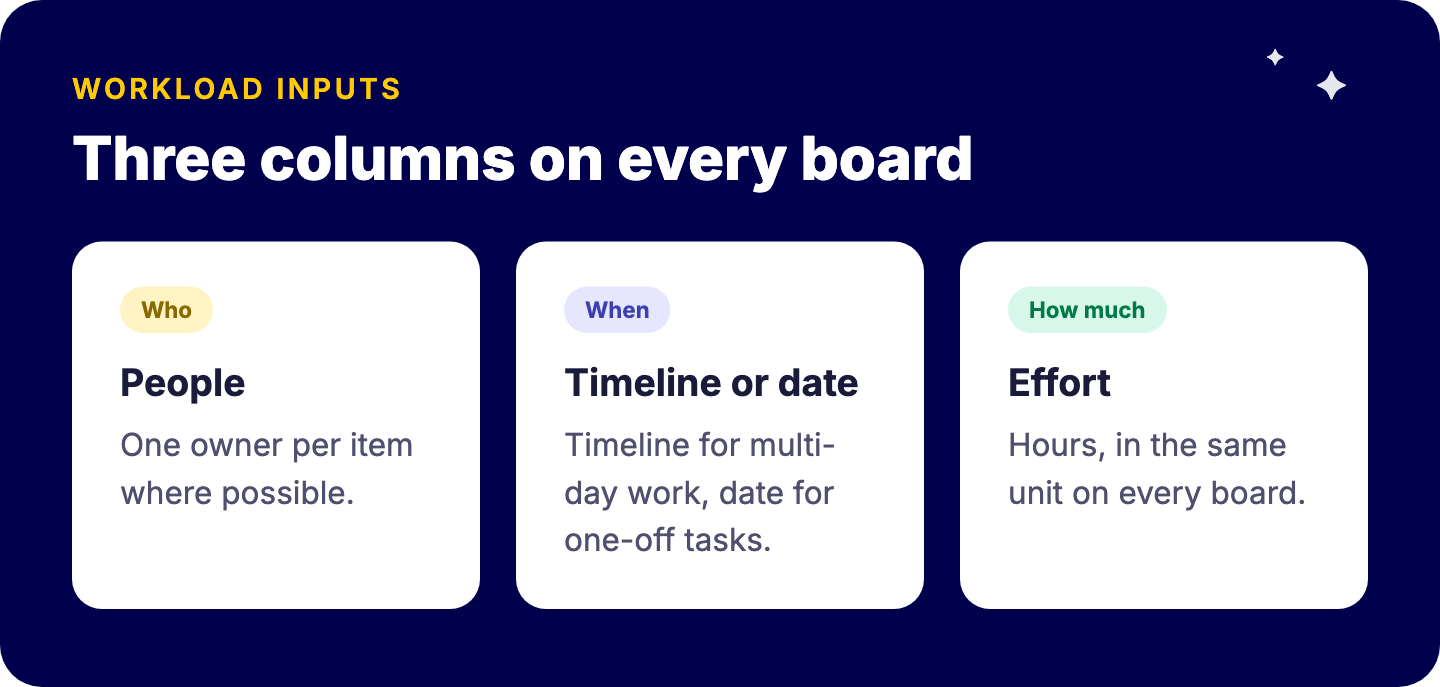
| People | Who does the work | One owner per item where possible |
| Timeline or date | When the work happens | Timeline for multi-day work, date for one-off tasks |
| Effort | How much work | Hours in a number or time estimation column; be consistent across boards |
Two consistency rules make or break cross-board views:
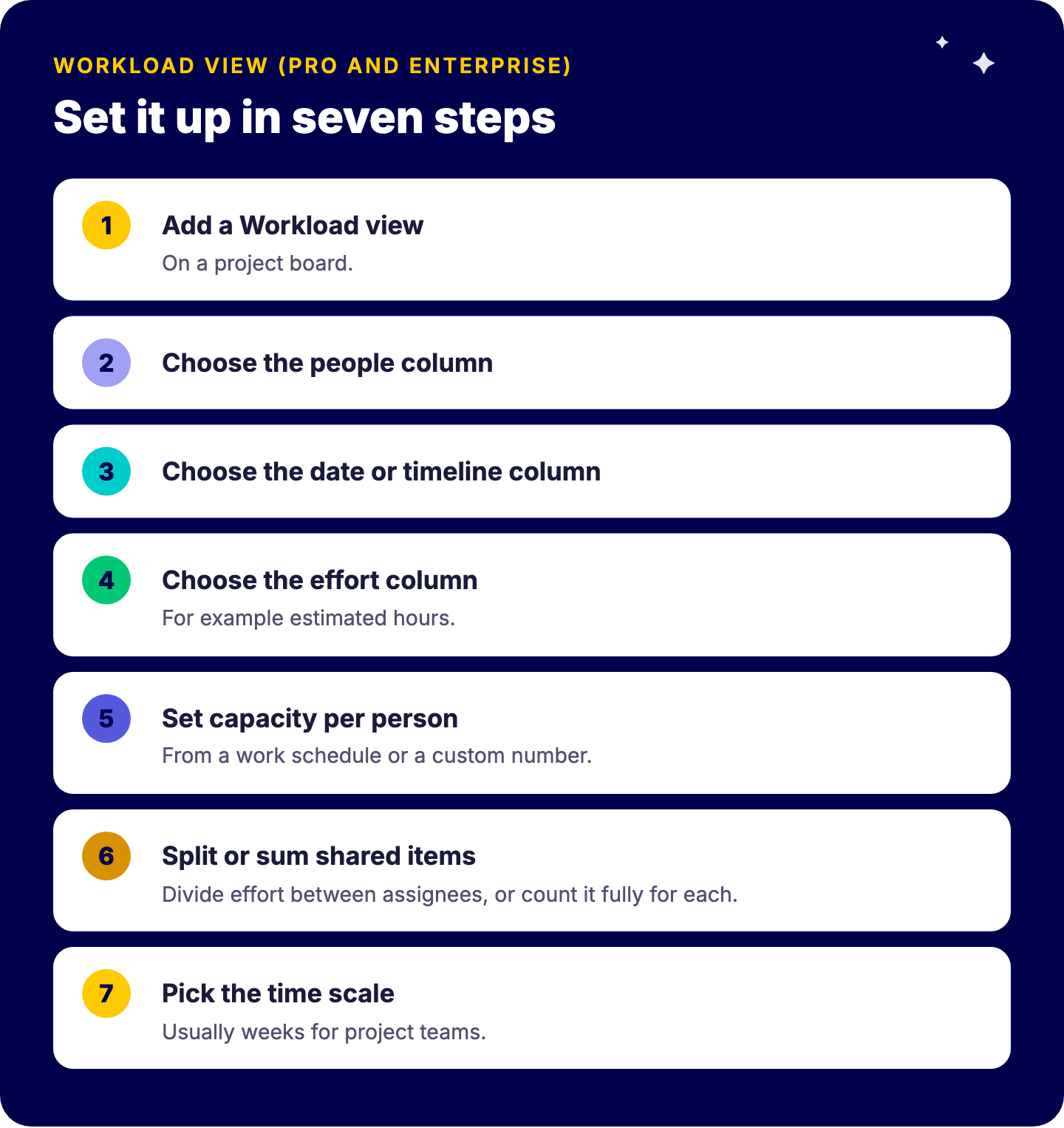
Then move work directly in the view: drag items between people or dates to rebalance.
Less than their contract hours. A consultant on 38 hours a week does not have 38 plannable project hours. Meetings, internal work, support requests and context switching take a real share.
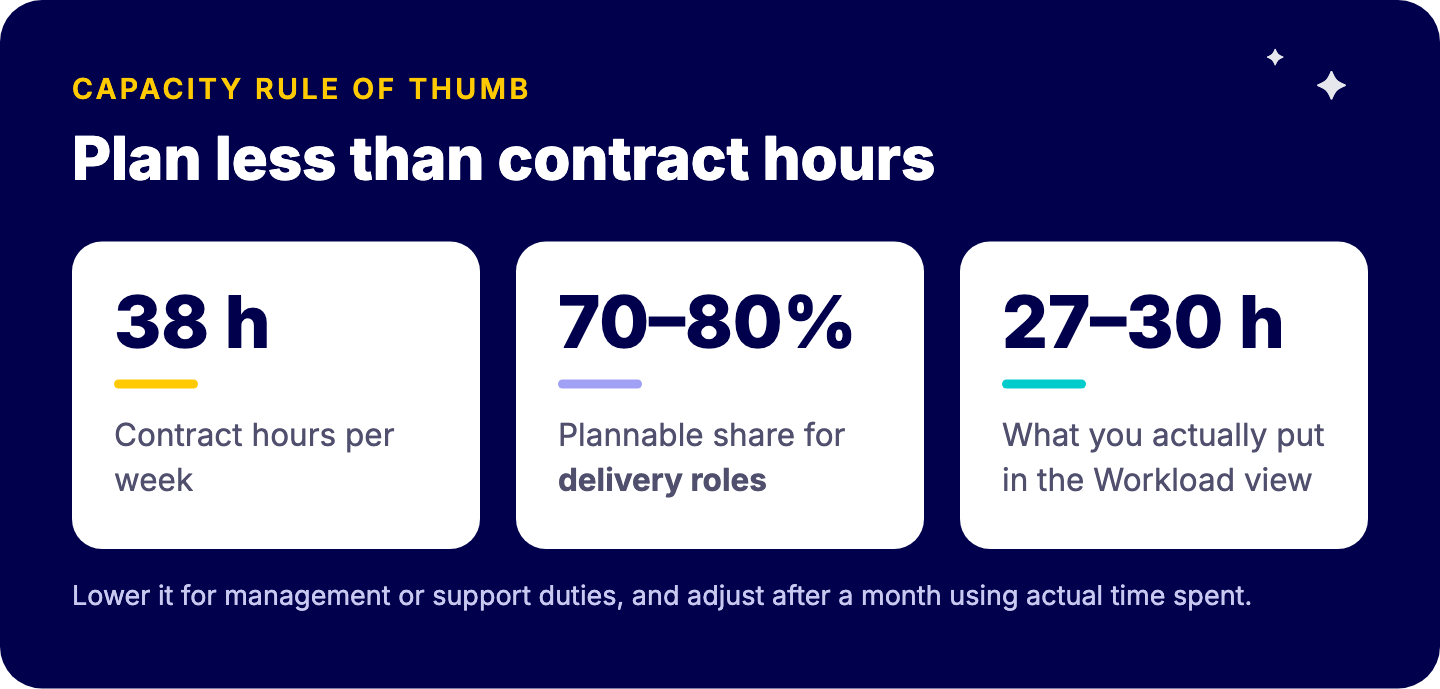
A practical approach:
A single board’s Workload view only shows that board. For a real picture, add a Workload widget to a dashboard connected to all active project boards. This is where portfolio structure pays off.
The Vlerick setup is a good illustration: projects are organized into portfolios, each project uses a consistent template, resource capacities are adjustable per board, and weekly planning is linked to annual budgets by domain. For more on portfolio views, read managing projects at scale with the monday.com portfolio solution and our guide to dashboards that get used.
A capacity view is only as good as its inputs. The habits that matter most:
If you run many parallel projects, our guide on how to manage multiple projects at once covers the prioritization side, and a Gantt chart view helps visualize dependencies that drive the peaks.
Yes, through the Workload view and Workload widget, on the Pro and Enterprise plans.
In the Workload settings, from a schedule or a custom value, with an effort column as input.
Yes, with a dashboard Workload widget over boards with consistent columns.
Capacity planning looks forward at planned effort; time tracking looks back at actual hours.
We design board templates, effort conventions and capacity dashboards that give you a reliable forward view across all projects. Book a free intro call with Tryve.